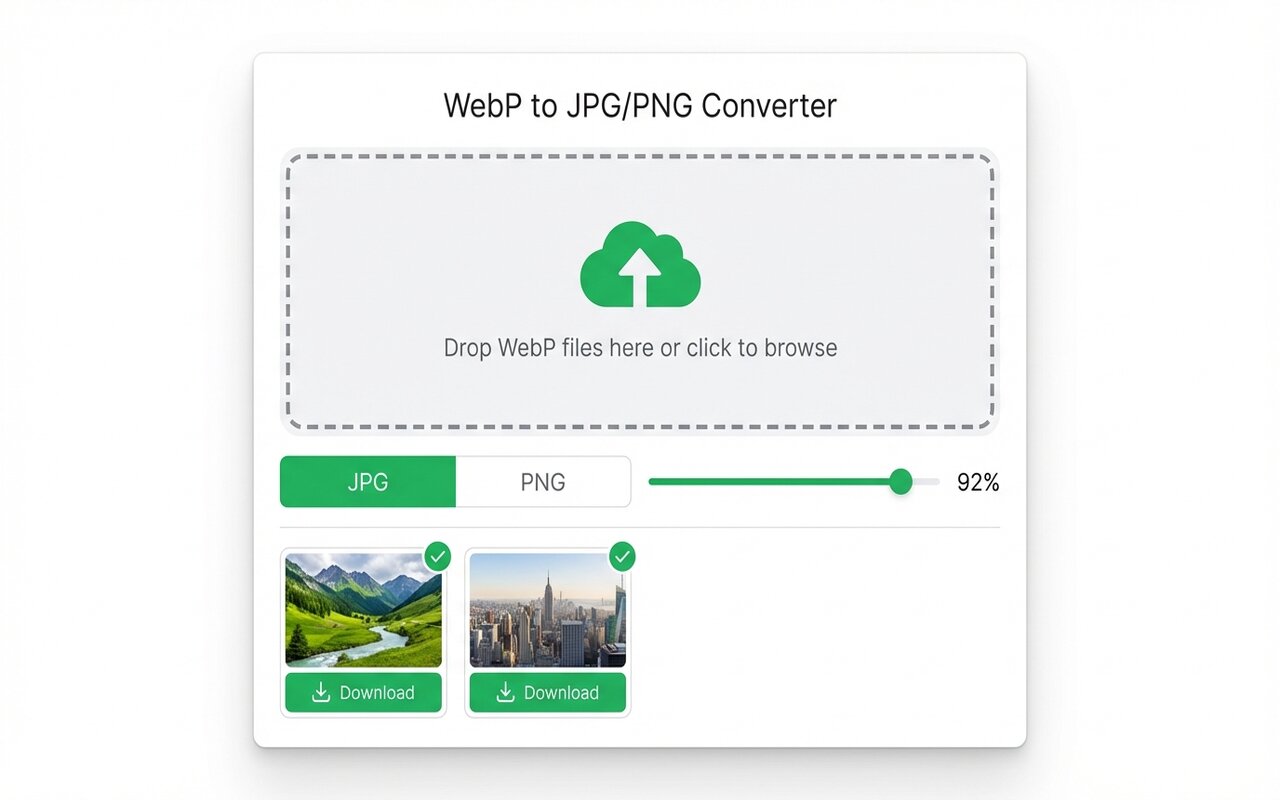
magick input.webp -quality 95 output.jpg (single file) or magick mogrify -format jpg -quality 90 -path ./converted *.webp (batch). Ffmpeg: ffmpeg -i input.webp -qscale:v 2 output.jpg. MacOS sips: sips -s format jpeg input.webp --out output.jpg. For browser-based conversion without any terminal, use the WebP to JPG/PNG Converter Chrome extension.
This guide is a complete command-line reference for WebP to JPG conversion — covering single files, batch conversion, quality settings, and platform-specific commands. The commands are organized by tool so you can jump to whichever is already installed on your system.
No Terminal? Convert WebP to JPG in Your Browser
Right-click any WebP image and save as JPG. No command line required.
Add to Chrome — FreeImageMagick Commands
ImageMagick is the most versatile option — available on all platforms and handles single files, batch conversion, quality control, and resizing in one tool.
Single file conversion
# Basic conversion
magick input.webp output.jpg
# High quality (recommended for most uses)
magick input.webp -quality 95 output.jpg
# With chroma subsampling preserved (best for photographs)
magick input.webp -quality 95 -sampling-factor 4:4:4 output.jpg
# Convert to PNG (lossless, preserves transparency)
magick input.webp output.png
Batch conversion (all WebP in current folder)
# Convert in-place (replaces .webp with .jpg in same folder)
# WARNING: This does not delete the original .webp files, but creates .jpg files
magick mogrify -format jpg *.webp
# Convert and save to a different folder (RECOMMENDED — keeps originals)
mkdir -p converted
magick mogrify -format jpg -quality 90 -path ./converted *.webp
# Convert with quality setting
magick mogrify -format jpg -quality 95 -path ./converted *.webp
# Convert to PNG (lossless)
magick mogrify -format png -path ./converted *.webp
Recursive batch conversion (subdirectories)
# Linux/macOS: find all WebP files recursively and convert
find . -name "*.webp" -exec magick {} {}.jpg \;
# Windows PowerShell equivalent
Get-ChildItem -Recurse -Filter "*.webp" | ForEach-Object {
magick $_.FullName ($_.FullName -replace '\.webp$', '.jpg')
}
Install ImageMagick
- Windows:
winget install ImageMagick.ImageMagick - macOS:
brew install imagemagick - Ubuntu/Debian:
sudo apt install imagemagick - RHEL/Fedora:
sudo dnf install ImageMagick
ffmpeg Commands
ffmpeg is primarily a video tool, but it handles image format conversion reliably. Use it if ffmpeg is already installed on your system.
ffmpeg WebP to JPG commands
# Basic conversion
ffmpeg -i input.webp output.jpg
# High quality (qscale: 1=highest, 31=lowest)
ffmpeg -i input.webp -qscale:v 2 output.jpg
# Very high quality
ffmpeg -i input.webp -qscale:v 1 output.jpg
# Medium quality (smaller file)
ffmpeg -i input.webp -qscale:v 5 output.jpg
Batch conversion with ffmpeg (shell loop)
# Linux/macOS bash loop
mkdir -p converted
for f in *.webp; do
ffmpeg -i "$f" "converted/${f%.webp}.jpg"
done
# Suppress verbose output
for f in *.webp; do
ffmpeg -i "$f" -loglevel error "converted/${f%.webp}.jpg"
done
macOS sips Commands (Built-in, No Install)
sips is built into every macOS version — no installation required. It is the fastest option for macOS users.
sips single file and batch commands
# Single file WebP to JPG
sips -s format jpeg input.webp --out output.jpg
# With quality (0-100)
sips -s format jpeg -s formatOptions 95 input.webp --out output.jpg
# Single file WebP to PNG
sips -s format png input.webp --out output.png
# Batch convert all WebP in current folder to JPG
for f in *.webp; do
sips -s format jpeg "$f" --out "${f%.webp}.jpg"
done
# Batch with quality setting
for f in *.webp; do
sips -s format jpeg -s formatOptions 90 "$f" --out "${f%.webp}.jpg"
done
# Batch to specific output directory
mkdir -p converted
for f in *.webp; do
sips -s format jpeg "$f" --out "converted/${f%.webp}.jpg"
done
Python with Pillow
Python provides the most control over conversion parameters, including chroma subsampling options:
from PIL import Image
import os, glob
# Single file conversion
img = Image.open("input.webp").convert("RGB")
img.save("output.jpg", "JPEG", quality=95, subsampling=0)
# subsampling=0 = 4:4:4, best color detail for photographs
# Batch conversion
input_dir = "."
output_dir = "./converted"
os.makedirs(output_dir, exist_ok=True)
for filepath in glob.glob(os.path.join(input_dir, "*.webp")):
filename = os.path.basename(filepath)
stem = os.path.splitext(filename)[0]
img = Image.open(filepath).convert("RGB")
out_path = os.path.join(output_dir, f"{stem}.jpg")
img.save(out_path, "JPEG", quality=90, subsampling=0)
print(f"Converted: {filename}")
print("Done.")
Install Pillow: pip install Pillow
Quality Setting Reference
| Use Case | ImageMagick -quality | ffmpeg -qscale:v | Python Pillow quality= |
|---|---|---|---|
| Near-lossless (archival) | 95 | 1 | 95 |
| High quality (printing, editing) | 90 | 2 | 90 |
| Good quality (web, sharing) | 85 | 3 | 85 |
| Balanced (email, thumbnails) | 80 | 5 | 80 |
| Small file (aggressive compression) | 70 | 8 | 70 |
Prefer a GUI? Convert WebP to JPG in Chrome
Right-click any WebP image and save as JPG or PNG. No terminal needed.
Install WebP Converter — FreeRelated Guides
- Batch Convert Multiple WebP Files
- WebP to JPG Without Quality Loss
- How to Convert WebP on Mac
- Bulk WebP Conversion for Designers
Frequently Asked Questions
What is the ImageMagick command to convert WebP to JPG?
Single file: magick input.webp -quality 95 output.jpg. Batch: magick mogrify -format jpg -quality 90 -path ./converted *.webp. Always use -path with mogrify to save to a separate folder and preserve originals.
How do I convert WebP to JPG with ffmpeg?
Single file: ffmpeg -i input.webp -qscale:v 2 output.jpg. In ffmpeg, lower qscale numbers mean higher quality (1-5 for high quality). Batch: use a shell loop iterating over *.webp files.
How do I batch convert WebP to JPG in a folder using the command line?
ImageMagick (all platforms): magick mogrify -format jpg -path ./converted *.webp. MacOS sips: for f in *.webp; do sips -s format jpeg "$f" --out "${f%.webp}.jpg"; done. Always save to a separate output folder to preserve originals.
What quality setting should I use when converting WebP to JPG?
For near-lossless: ImageMagick -quality 95, ffmpeg -qscale:v 1-2. For a balance of quality and file size: ImageMagick -quality 85, ffmpeg -qscale:v 3. Quality 85-90 is the sweet spot for most web and sharing use cases — imperceptible difference from 95 at much smaller file size.
How do I convert WebP to JPG on Linux?
Install ImageMagick: sudo apt install imagemagick, then: magick input.webp output.jpg. Or install ffmpeg: sudo apt install ffmpeg, then: ffmpeg -i input.webp output.jpg.