Quick answer
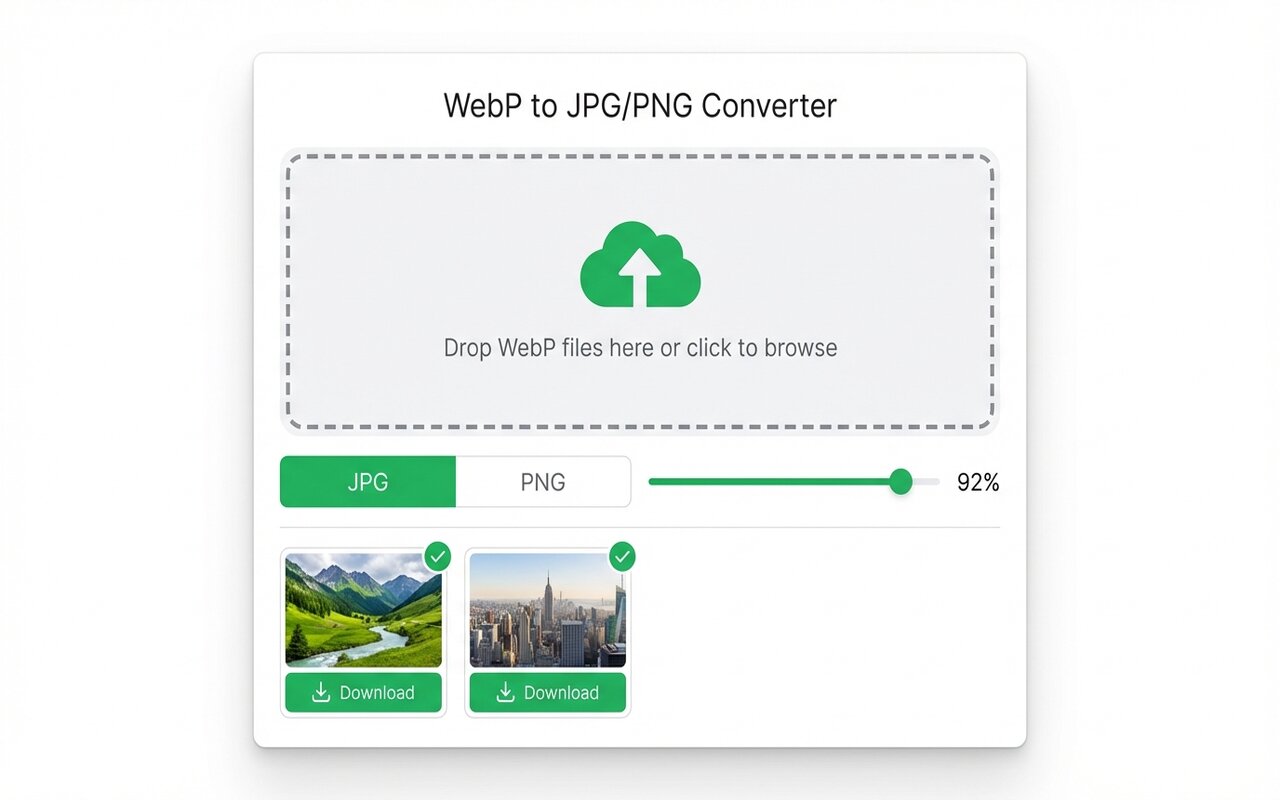
The easiest way to batch convert WebP files is the WebP to JPG Chrome extension: drag 100+ files into the drop zone, set format and quality, and the extension downloads a ZIP with all converted files in seconds.
Converting 50 WebP images one at a time takes an hour. Batch conversion takes 2 minutes. Here are two methods for any scale.
Method 1: Chrome extension (best for 10-500 files)
Drag-drop batch conversion:
- Install the WebP to JPG Chrome extension.
- Click the toolbar icon, then drop an entire folder of WebP files (or select 50+ files at once).
- Choose quality (90 for JPG is fine), output format (JPG or PNG), and click Convert.
- The extension outputs a ZIP with all converted files ready to download.
No upload, no watermark, no daily limit. Bounded only by browser memory (typically handles 500 files on a 16 GB machine).
Method 2: Command-line ImageMagick (best for 500+ files)
For very large batches or automation:
- Install ImageMagick (Mac:
brew install imagemagick, Windows: download installer). - Open Terminal or Command Prompt and run:
mogrify -format jpg *.webp - This converts all WebP in the current folder to JPG in seconds.
For preserving original WebP files: for f in *.webp; do convert "$f" "$f%.webp.jpg"; done
Organizing batches: output folder structure
After batch converting 100+ files, you may want to organize:
- Chrome extension: outputs a ZIP with all files in a flat folder. Useful for quick review, then move to permanent location.
- ImageMagick: outputs files to the same folder as inputs by default. Add a script to move them to a separate folder:
mkdir converted && mv *.jpg converted/
If you need to preserve original WebP files, always convert to a new folder or rename the outputs.
Quality settings for batch conversion
Decide quality before converting 100 files:
- Quality 90 JPG: Web-safe, looks nearly perfect, typical file size 50-70% of original WebP.
- Quality 75 JPG: Good for thumbnails and social media, file size 30-50% of WebP.
- PNG lossless: No quality loss, but file size usually 10-40% larger than WebP.
Test on one file first, then apply the same setting to your entire batch.
Common batch conversion issues
- "Browser ran out of memory": close other tabs, or split your batch into smaller groups (max 200 files per batch).
- Output files are very large: you probably selected PNG lossless format. Switch to JPG quality 90 instead.
- Missing some files in output: check that all source WebP files are in the same folder and the extension did not time out. If batches are over 500 files, use ImageMagick instead.
At-a-glance comparison
| Tool | Best for | Speed (100 files) | Upload required | File limit |
|---|---|---|---|---|
| Chrome extension | 10-500 files | 30 seconds | No | Browser RAM |
| ImageMagick CLI | 50-10,000 files | 10 seconds | No | Disk space only |
| CloudConvert | Batches (free tier) | 2-3 minutes | Yes | 25 files/month free |
| iLoveIMG | Batches | 5+ minutes | Yes | 15 files/day free |