Quick answer
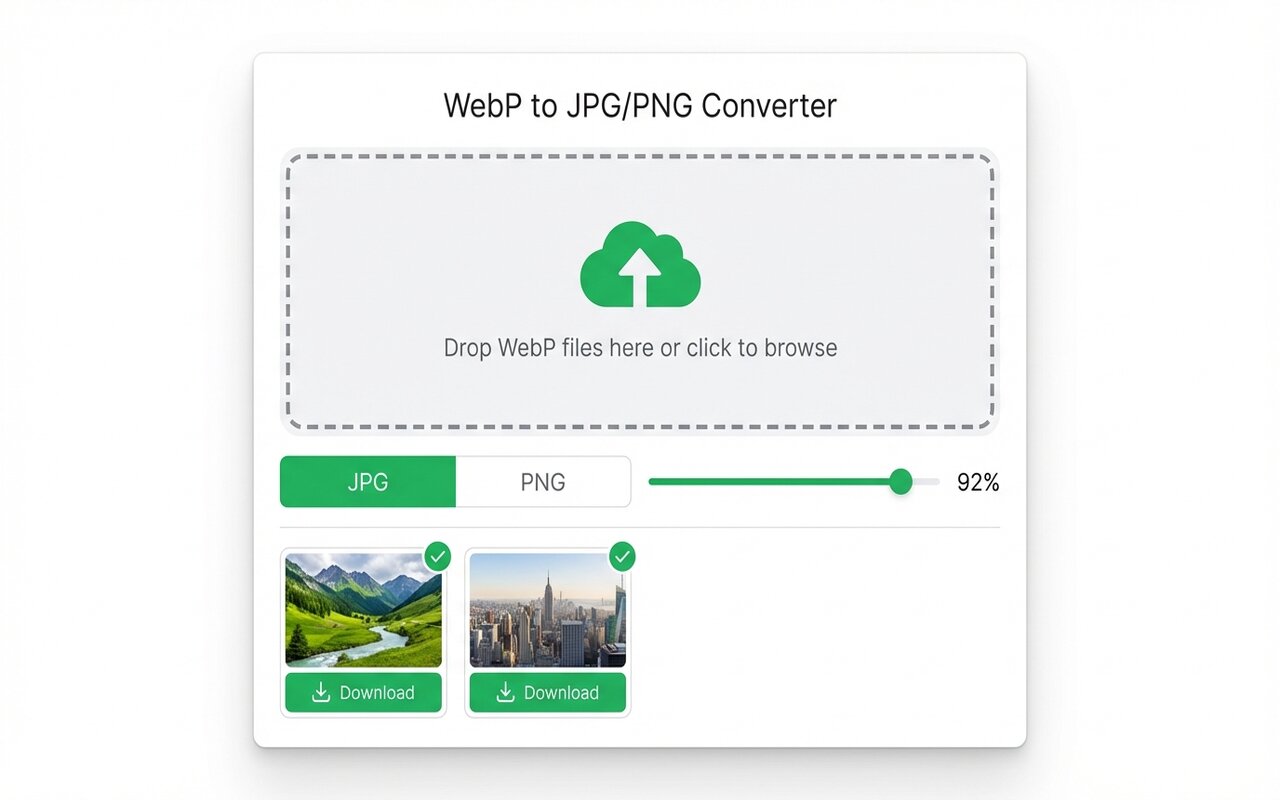
Install the WebP to JPG Chrome extension, then right-click any WebP image online and select "Save WebP as JPG". The file downloads instantly in JPG format.
You find a WebP image on a website, right-click to save, but Chrome only offers "Save image as WebP" or "Save image as PNG". Here is how to add JPG as an option.
Why Chrome does not offer "Save as JPG"
Chrome's right-click context menu only offers formats that the browser recognizes as native. WebP is native, so Chrome offers that. The browser does not offer JPG because:
- Converting formats (WebP to JPG) is an extra step Chrome does not do automatically.
- If you right-click a WebP image, Chrome assumes you want to keep it in the source format.
To add JPG as an option, you need an extension that adds a custom right-click menu item.
Installing the WebP to JPG extension
- Go to the Chrome Web Store and search for "WebP to JPG".
- Click Add to Chrome, then confirm the permission request.
- The extension icon appears in your toolbar.
That is it. No configuration needed.
Using the right-click context menu
- Right-click any WebP image on a website (Google Images, Pinterest, product pages, etc.).
- Select "Save WebP as JPG" from the context menu.
- Chrome downloads the file as a JPG to your Downloads folder.
You can also change the download folder in Chrome Settings > Downloads > Change if you prefer a different location.
Batch saving WebP images from a webpage
If a page has 20 WebP images you want to save as JPG:
- Right-click each image and select "Save WebP as JPG" (repetitive for large batches).
- Or, use the extension's bulk feature: click the toolbar icon, select "Batch Download", and paste the URLs of all images.
- The extension downloads and converts all at once.
For 50+ images, the second approach is faster.
Common sites where this is useful
- Google Images: WebP is the default format, right-click to save as JPG instead.
- Pinterest: pins are served as WebP, right-click to save as JPG for printing or archiving.
- E-commerce sites: product images often use WebP, right-click to save in a format compatible with your email or desktop software.
- Portfolio websites: design portfolios often serve WebP for speed, right-click to save and share in JPG format.
At-a-glance comparison
| Method | Works on | Speed | Batch support | Setup |
|---|---|---|---|---|
| Right-click save (extension) | Any website | 1 click per image | Yes (bulk feature) | 30 sec install |
| Chrome default | WebP only | 1 click | No | Built-in |
| Bulk Image Downloader | Any website | Fast | Yes | Extension install |
| Manual open + convert | Any website | Slow | No | Extension + manual |