Quick answer
On a Mac, you have three free options: Preview (open WebP, export as JPG), command-line ImageMagick (fast batch conversion), or the WebP to JPG Chrome extension (drag-drop UI, works across all OS).
macOS has built-in image tools since Snow Leopard, but most Mac users do not know Preview can convert WebP. Here are three free methods that avoid any paid software.
Method 1: Preview (built-in, no install)
Apple's Preview app handles WebP natively on macOS 11+:
- Right-click the WebP file in Finder, select Open With > Preview.
- File > Export As.
- Change Format to JPG, choose quality slider (80-90 is fine), and save.
Preview is instant for 1-5 files. For batches, use Method 2 or 3 instead.
Method 2: ImageMagick (fast batch conversion)
Install ImageMagick via Homebrew, then convert 100 WebP files in seconds:
- Install:
brew install imagemagick - Convert one file:
convert input.webp output.jpg - Convert all WebP in a folder:
mogrify -format jpg *.webp
This is the fastest method for batches but requires terminal comfort.
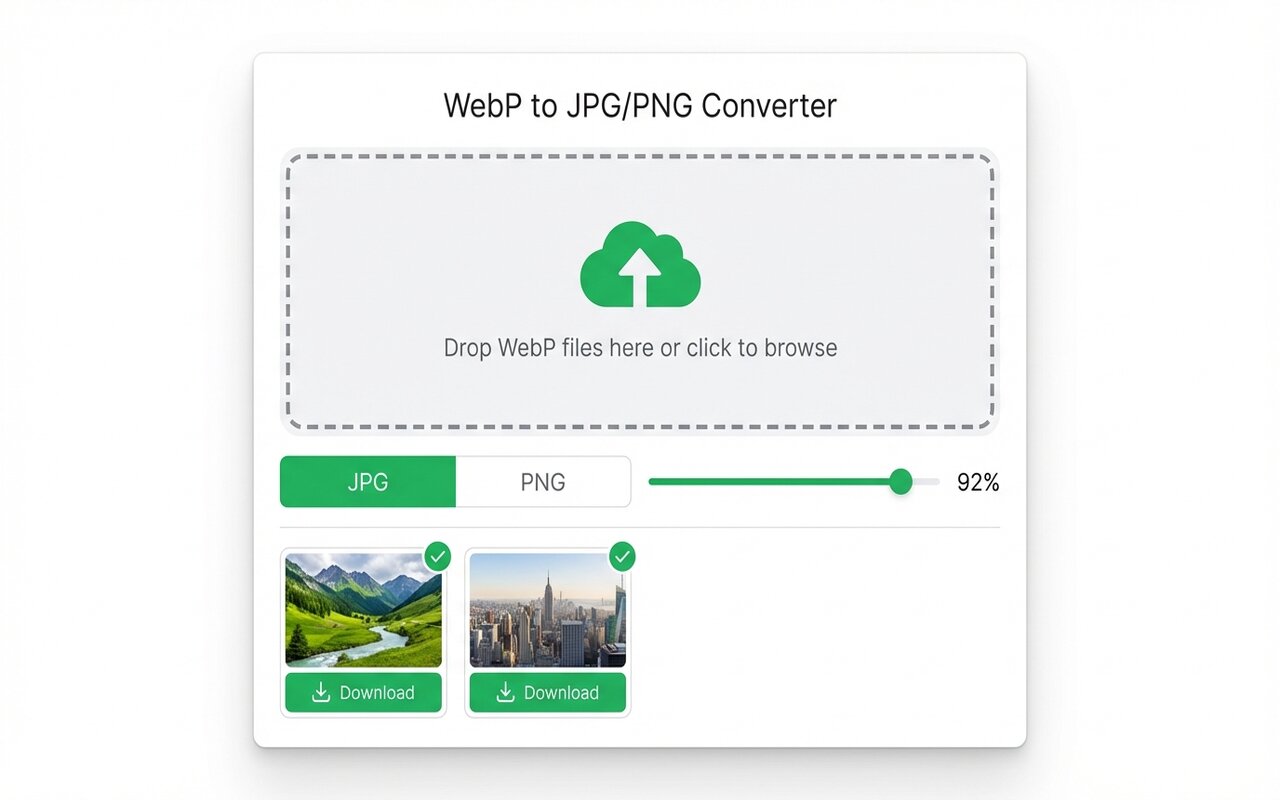
Method 3: WebP to JPG Chrome extension
Works the same on Windows, Mac, Linux, and Chromebook:
- Install from the Chrome Web Store (one click).
- Click the toolbar icon, drop your WebP files.
- Choose quality and format, then click Convert and Download.
Useful if you switch between Mac and Windows and want one consistent workflow.
Why not use Acrobat or Photoshop?
Adobe Acrobat and Photoshop can convert WebP to JPG, but both cost $14.99/month or more. For a one-time conversion, that is overkill. For occasional use, Preview or the Chrome extension is instant and costs nothing.
Batch automation on Mac
If you have a folder of WebP files and want to convert all at once:
Option A (no install): Drop the entire folder into the Chrome extension's drop zone. It converts all files and downloads a ZIP.
Option B (ImageMagick): cd /path/to/folder && mogrify -format jpg *.webp
Option C (Automator): Build a Quick Action that calls ImageMagick, then right-click any folder and convert.
At-a-glance comparison
| Method | Setup time | Best for | Batch support | Cost |
|---|---|---|---|---|
| Preview | 0 min | 1-5 files | No | Built-in |
| ImageMagick | 2 min (brew install) | Batches 50+ | Yes (CLI) | Free |
| Chrome extension | 30 sec | Cross-platform | Yes (UI) | Free |
| Acrobat Pro | 5 min install | Power users | Yes | $14.99/mo |