Quick answer
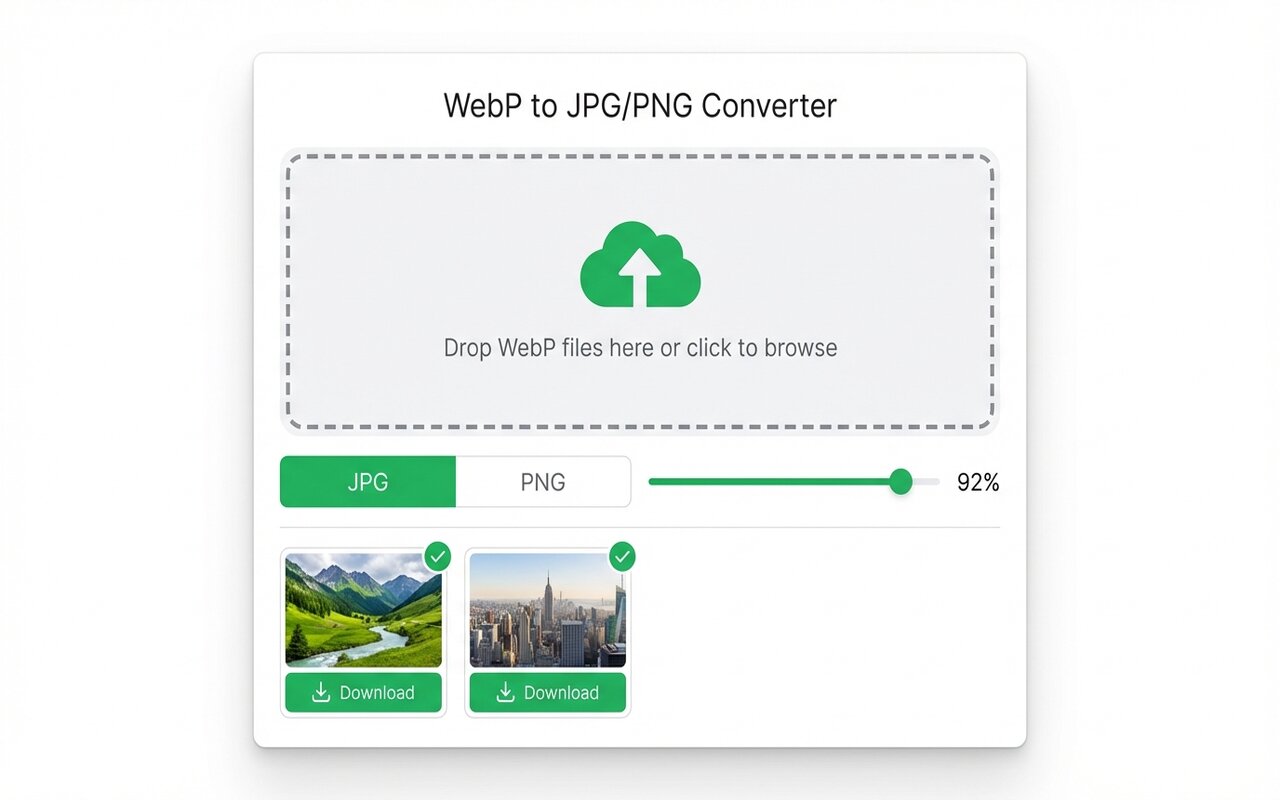
Windows 10+ has built-in WebP support. Open a WebP file in the Photos app, click Edit, save as JPG. Or use the WebP to JPG Chrome extension for drag-drop conversion with batch support.
Windows does not make WebP conversion obvious, but three free methods work on any Windows 10 or 11 machine.
Method 1: Photos app (built-in, Windows 10+)
Windows 10 and 11 come with a Photos app that handles WebP:
- Right-click the WebP file, select Open With > Photos.
- Click Edit in the top-right menu.
- Click Save a Copy, change format to JPG, and save.
This works for 1-5 files. For batches, use Method 2 or 3.
Method 2: Paint (built-in, any Windows)
Windows Paint has supported WebP since Windows 10:
- Right-click the WebP file, select Open With > Paint (or Paintbrush).
- File > Save As, change Save As Type to JPG (JPEG), and save.
Paint is slower than Photos for large files but works on any Windows version.
Method 3: Chrome extension (batch conversion)
For converting 10+ WebP files at once:
- Install the WebP to JPG extension from the Chrome Web Store.
- Click the toolbar icon, drag all WebP files into the drop zone.
- Choose quality (90 is usually fine), then click Convert and Download.
- The extension outputs a ZIP with all converted files.
This is the fastest method for batches.
Command-line conversion (for scripting)
If you work with a lot of WebP files and want to automate:
- Install ImageMagick: Download from imagemagick.org (Windows installer).
- Open Command Prompt or PowerShell and run:
magick convert input.webp output.jpg - For a whole folder:
for /r . %i in (*.webp) do magick convert "%i" "%~ni.jpg"
Useful for batch scripts and automation but requires terminal comfort.
Comparison: which method is fastest?
For converting a single WebP file, all three are instant. For 50 WebP files:
- Photos app: 1 click per file (slow, 5+ minutes).
- Chrome extension: 1 drag, 1 click (1-2 minutes total).
- ImageMagick CLI: one command, 10-20 seconds total.
For most users, the Chrome extension is the sweet spot: no install, GUI, and batch support.
At-a-glance comparison
| Method | Setup | Best for | Batch speed | Cost |
|---|---|---|---|---|
| Photos app | 0 min | 1 file | Slow | Built-in |
| Paint | 0 min | 1-5 files | Slow | Built-in |
| Chrome extension | 30 sec | Batches 10-50 | Fast | Free |
| ImageMagick CLI | 3 min | Automation 100+ | Very fast | Free |